OneScreen: your whole workday on one screen
Mail, calendar, projects and money in one place. It runs on your Windows PC, and your records stay on your PC.
What it is
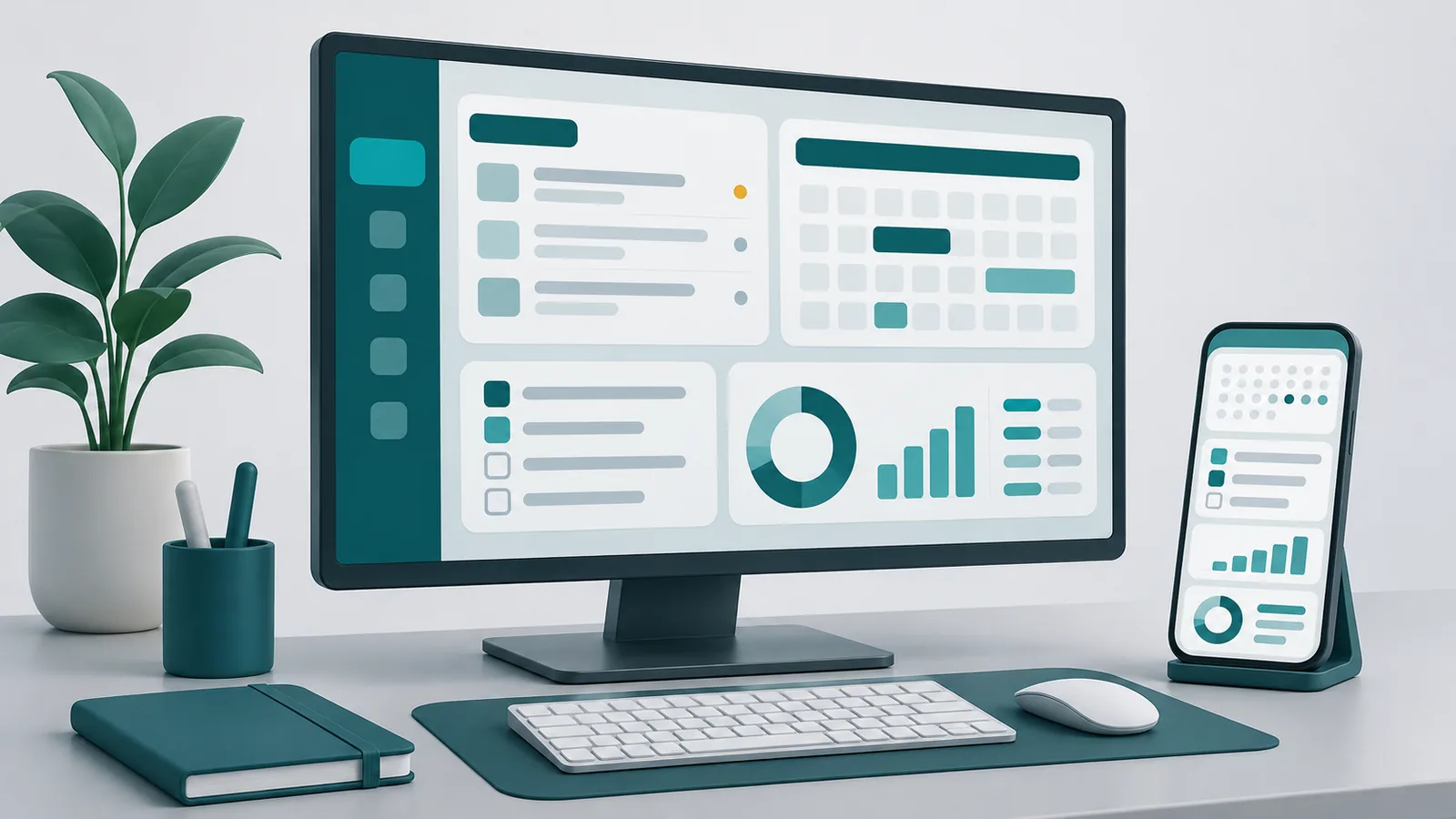
OneScreen is one screen for the things you check all day. You don't hop between five windows to see where your day stands.
It's an app on your own Windows PC. It keeps your records there.
- What came in and what needs an answer.
- Calendar
- Today and the days ahead.
- Projects
- What's moving and what's stuck.
- Money
- Invoices, payments and expenses, from QuickBooks Online or from a file you bring in. An upcoming update adds a "Help me connect my financials" button for the file route.
Your records stay on your PC
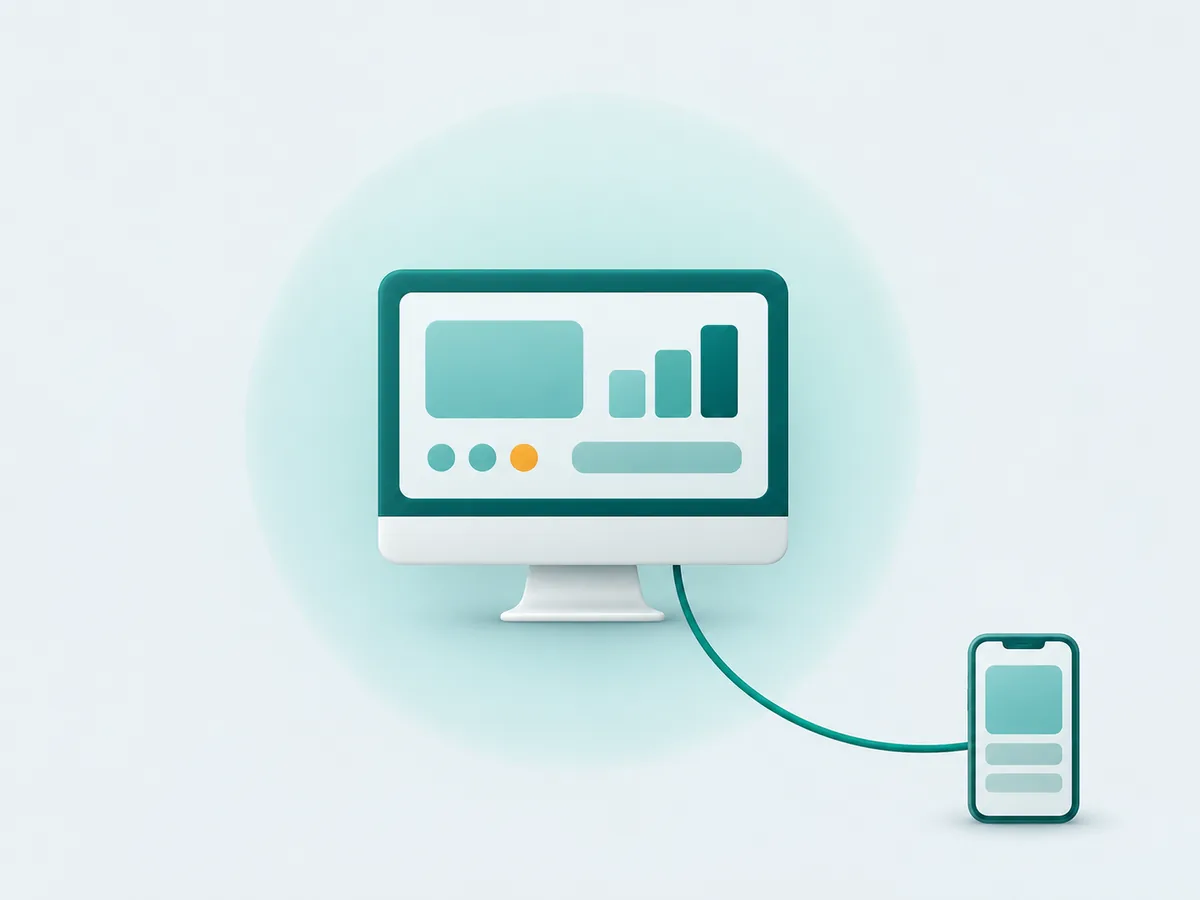
Adaptive doesn't receive your records, and OneScreen doesn't send usage data to Adaptive. Everything lives in a folder on your own computer.
Your phone reaches that same PC over a private line. Nothing gets copied to a cloud along the way.
On your PC and on your phone
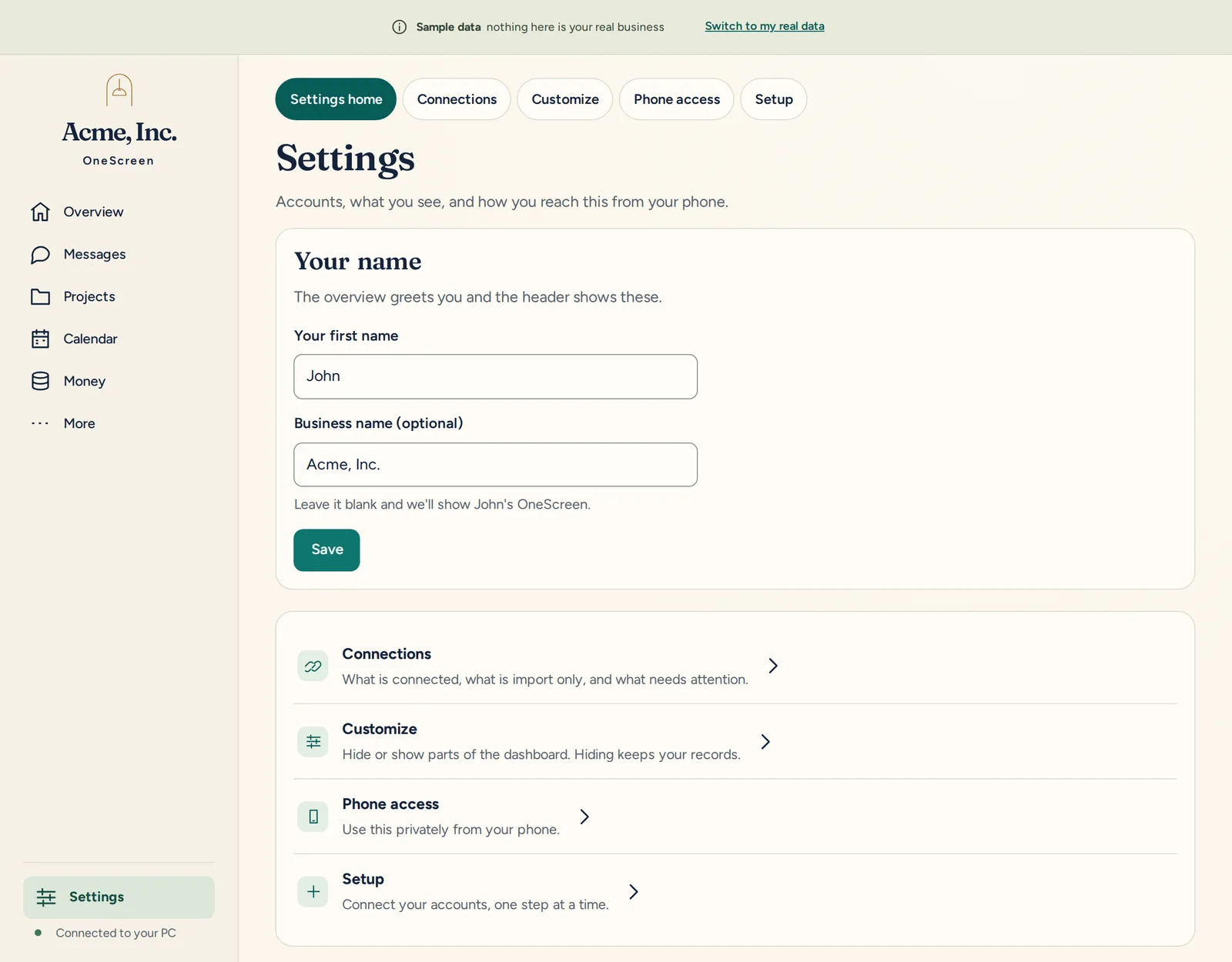
The same screen, sized for each. This is the PC, with a business name set, and the phone view.
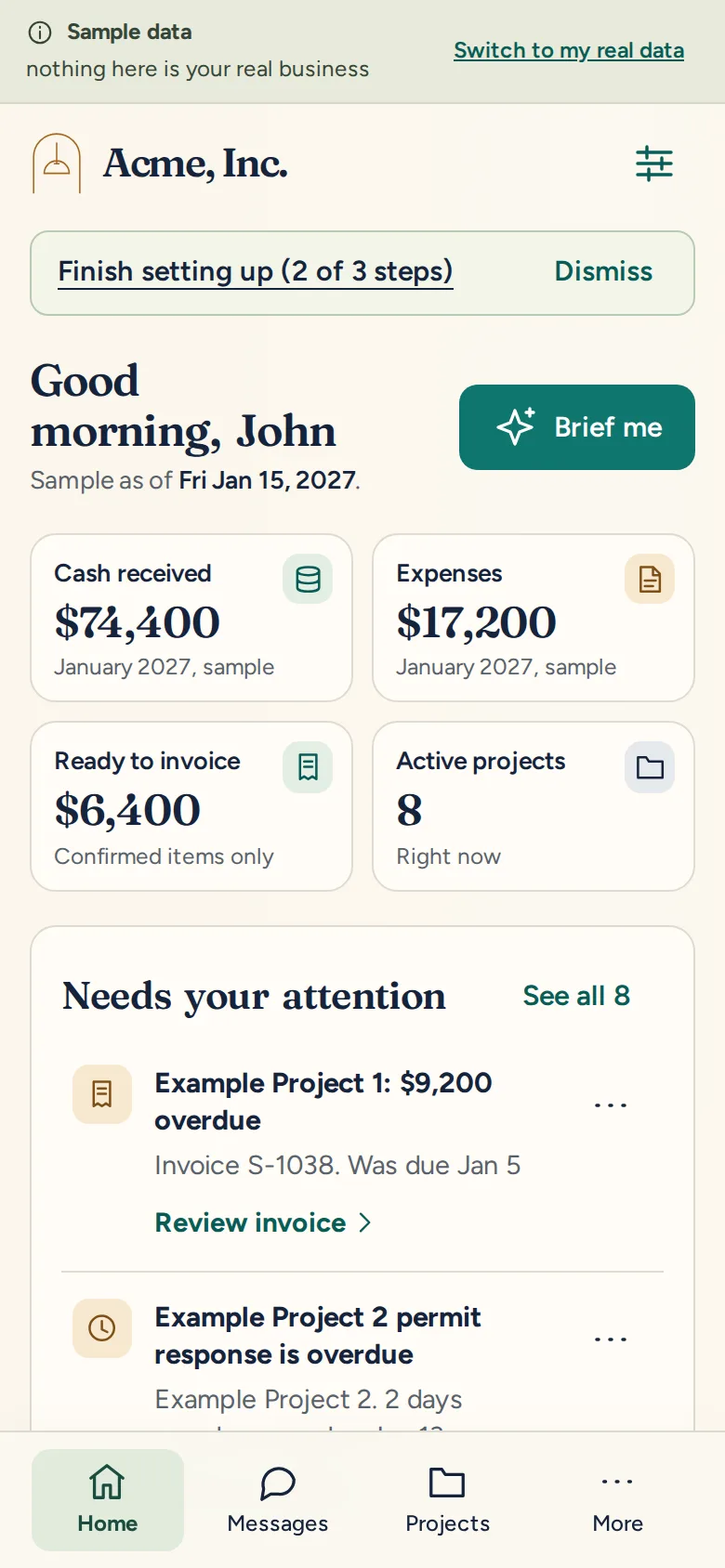
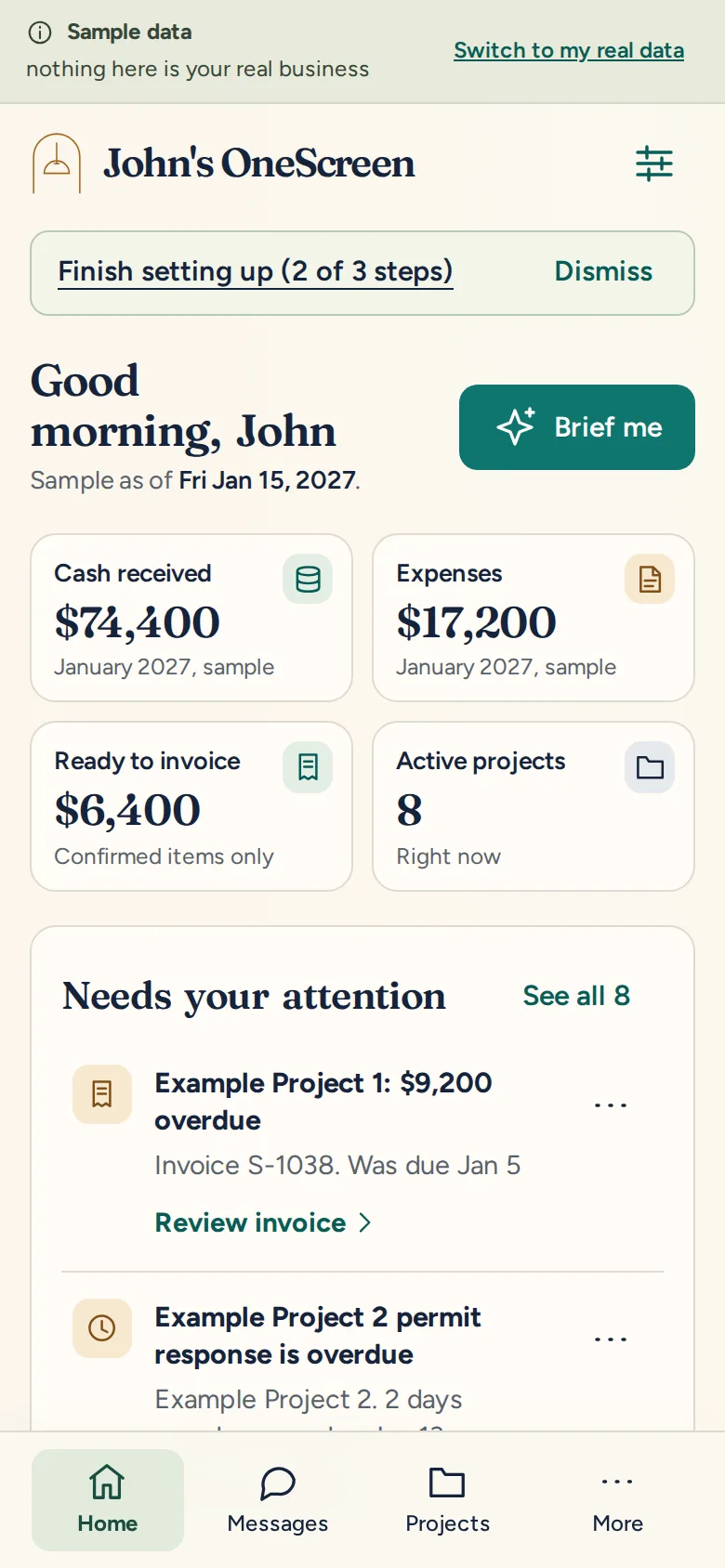
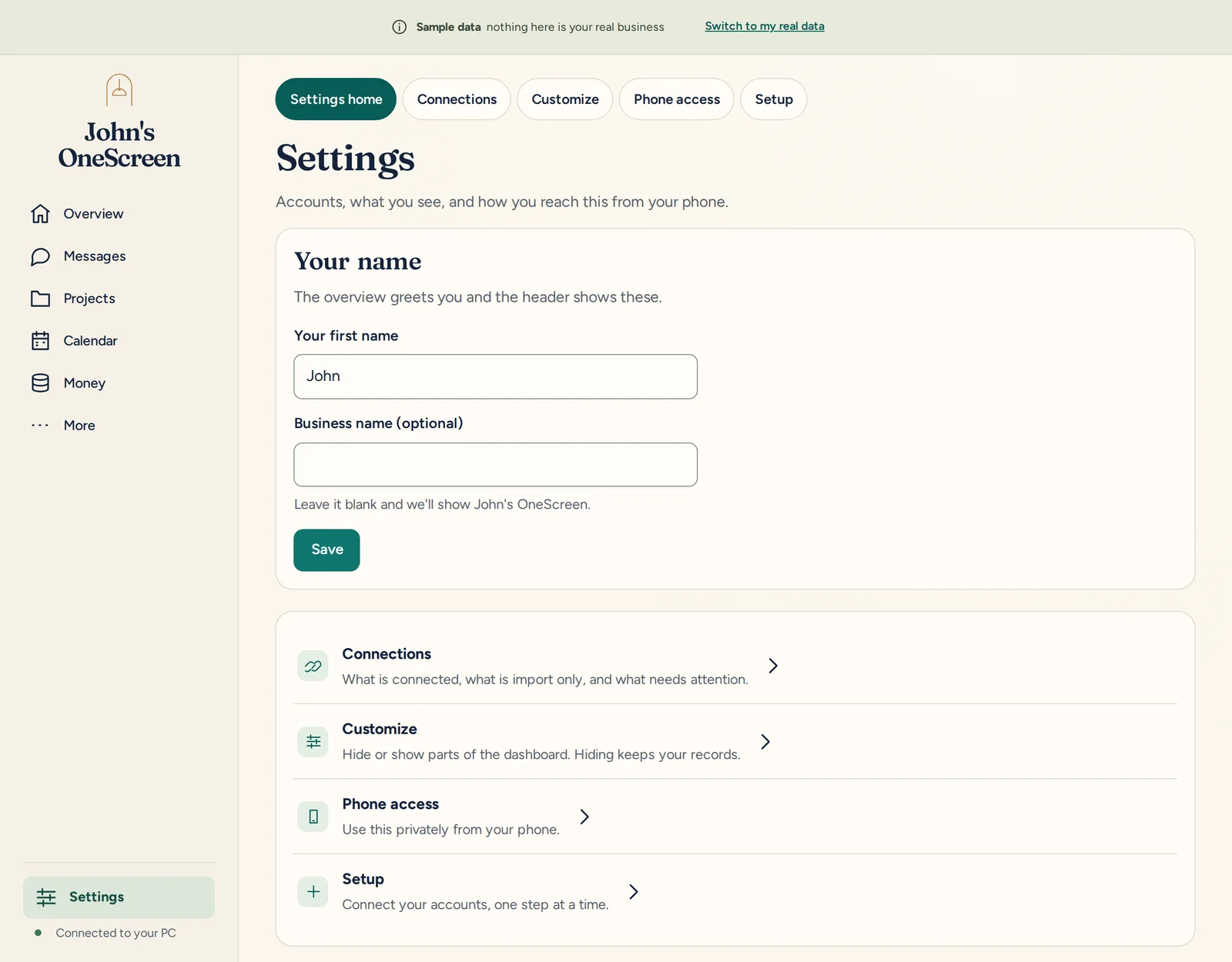
Phone access is private and goes through your own Tailscale account. Tailscale has a free personal plan. Your PC needs Tailscale installed to pair a phone.
How to open it
Double-click the OneScreen shortcut on your desktop. You can also open the Start Menu and choose OneScreen.
Your name on the screen
If you gave your first name during install, OneScreen says hello when you open it. You can change the name in Settings.
Two ways to bring in your money figures
Connect QuickBooks Online. This is the live connection. OneScreen signs in through QuickBooks, reads your invoices, payments and expenses, and never changes anything there. Connect QuickBooks
Bring in a file. Export your figures from any bank, card, payment service (PayPal, for example) or accounting program (QuickBooks, for example) and choose the file in OneScreen. It reads CSV files with a date and an amount on each row, and QIF, QFX, OFX and IIF files. OneScreen shows a preview before it adds anything, and you can undo an import. The file is read on your PC only, and only the file you choose.
OneScreen doesn't connect live to banks or payment services. Files are how you bring those in.
Not sure how to get the file? In the Setup step for your finances, choose Help me connect my financials. It opens a ready-made request. You paste it into your own ChatGPT or Claude, and it walks you through exporting a file from your bank, card, PayPal or accounting program and importing it into OneScreen. The request has no passwords and none of your business data in it, and OneScreen itself sends nothing. This button is part of an update that hasn't been released yet.
What is Tailscale, and why does OneScreen use it?
Tailscale is the private connection between your phone and your PC. It is a separate company with its own account, terms and privacy policy. OneScreen uses it so your phone can open your dashboard without putting anything on the public internet.
What it does
- Makes a private, encrypted connection between your phone and your PC.
- Nothing is put on the public internet. Only devices signed in to your own Tailscale account can open it.
- When your phone and PC can't connect directly, Tailscale can pass the traffic through its relay servers. Tailscale's documentation says those servers only forward already-encrypted traffic and can't read it.
What it does not do
- It doesn't give anyone else a way in. Setup refuses to finish if Tailscale shows something shared publicly, and it never changes a Tailscale share you already have.
- It isn't a requirement. The PC app works without it.
- OneScreen doesn't send your records to Adaptive.
What Setup does
Phone access is an optional part of Setup. It's recommended, and it's ticked by default, with a Skip for now button. If Tailscale is missing, Setup downloads it from Tailscale and checks the file is genuine. Windows asks your permission (the window may say Windows PowerShell, which is expected). A Tailscale sign-in page opens. You need a free account, which is Tailscale's, not ours. Then Setup switches on a private address that only your signed-in devices can use.
One Tailscale setting, HTTPS Certificates, has to be on in your Tailscale account. It lists your PC's private name in a public certificate record. That's normal and gives no one access.
You can skip phone access and finish it later in the app, under Use on my phone.
Read Tailscale's own pages: terms, privacy policy, and how its relay servers work.
Your phone needs your PC to be on
Your records live on your PC, so your phone can only reach them while that PC is awake and online. If the PC sleeps, the phone can't open the dashboard.
To keep it awake on Windows 11, open Settings, then System, then Power and battery. Open the section called Screen, sleep and hibernate timeouts (newer builds) or Screen and sleep (older builds), then set When plugged in, put my device to sleep after, to Never. On Windows 10, open Settings, then System, then Power and sleep, and set Sleep, When plugged in, to Never.
What leaves your PC
One row for each thing that can send anything off your PC.
| What | What leaves, and when |
|---|---|
| Adaptive | Nothing. The app sends no usage data to Adaptive. |
| QuickBooks Online | Read-only requests to Intuit, only when you connect it. OneScreen can only read there, never change anything. |
| Gmail and Microsoft 365 | Mail and calendar connections are still being finished. They are built to ask for read-only permission, and only after you sign in and connect. |
| Tailscale | Optional. Your phone's connection to your PC, encrypted, through your own Tailscale account. |
| The AI brief and Help me connect my financials | Off until you turn it on. The text goes to Anthropic or OpenAI through your own Claude Code or Codex install, under that provider's terms. The app shows you exactly what a request contains before it is sent. "Help me connect my financials" is part of an update that isn't released yet. |
| Update checks and usage reports | None. The app doesn't check for updates or report usage on its own. The one download is Setup fetching Tailscale, once, if you choose phone access and it's missing. |
Questions people ask
What do I need to run OneScreen?
Windows 10 or 11 on one PC. There is no Mac version and no Android app today. Your phone uses its web browser.
Can more than one person use it?
Today OneScreen is built for one owner. You can pair more than one phone. The first phone you pair becomes the owner phone, and other paired phones have more limited rights. Sensitive actions need the PC itself or the owner phone, confirmed with a fingerprint or face check.
What if my PC dies?
Your records live on that one PC, so back them up. In the app, the Setup step called Protect my business lets you pick where your backup lives and check that it works.
What can it connect to?
QuickBooks Online is connected live. Any bank, card, PayPal or accounting program works by importing a file. We don't have connections to named industry systems yet. If you want to ask about your tools, use the quote form on this page. We can't promise anything or give dates.
How do I uninstall it and delete my data?
Follow the steps on the disconnect page. They cover removing the app and deleting your data.
How do I check the installer before I run it?
OneScreen is installed from a file you download from us. Windows may show a "Windows protected your PC" screen for newer downloads. Before you run it, check that the SHA-256 on the download page matches the file (in PowerShell, run Get-FileHash -Algorithm SHA256 followed by the file path), and that the publisher shown is Adaptive IP Services, Inc. once the signed release is out. That's what we expect to see, not a promise about every build.
Want one for your own business?
Get more information, or a quote for your own personal dashboard.
Prefer to talk? Call (888) 382-7685.
Help and details
- Connect QuickBooks
- Disconnect or uninstall
- Download with a claim code
- Privacy Policy
- Terms of Service
QuickBooks is a trademark of Intuit Inc. OneScreen is not endorsed by or affiliated with Intuit.
Questions? Email info@adaptiveips.com or call (888) 382-7685.